Troubleshooting
Missing Files
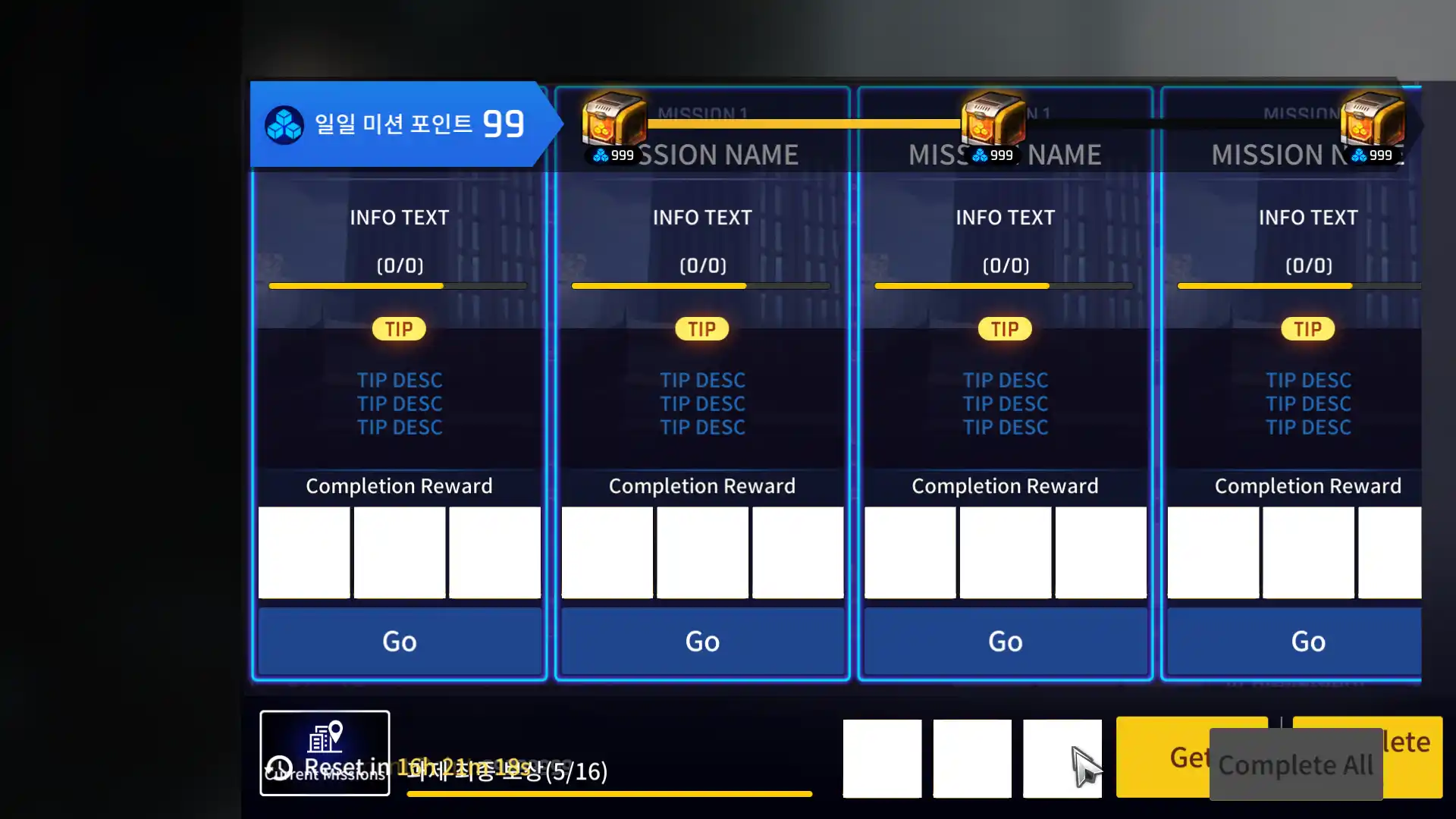
When freezing the client, it is possible that some files were not copied correctly. If this happens, you may see ui and other assets missing as shown below:
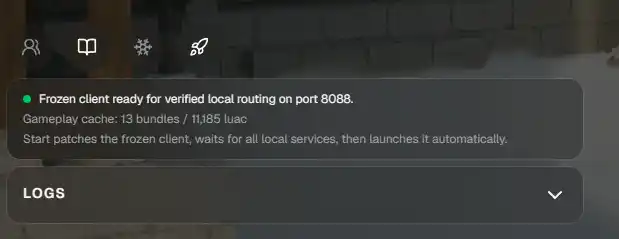
In order to fix this, copy the missing files from the CounterSide folder into RevivalSide's frozen-client\CounterSide-XXX folder.
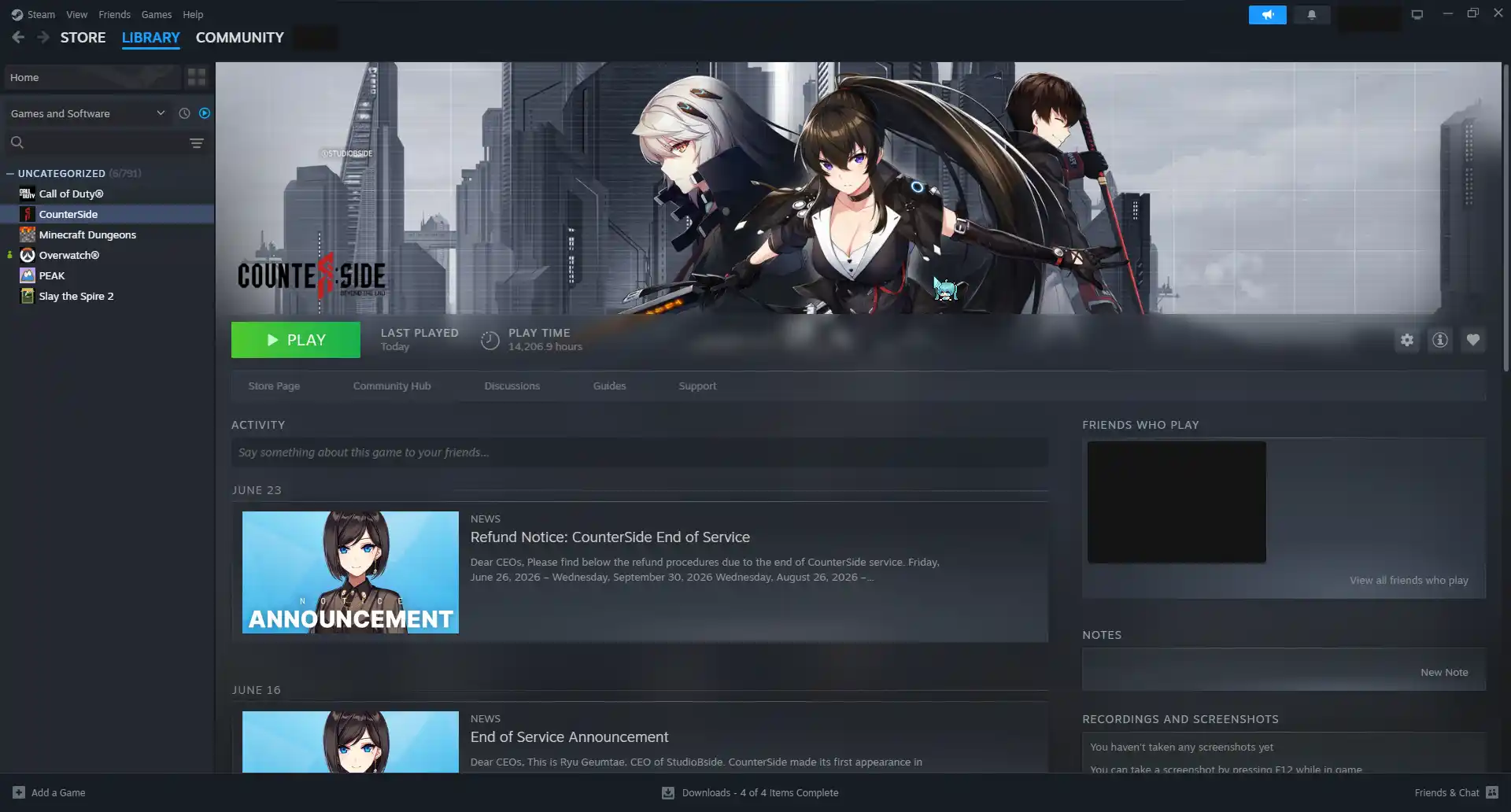
Browse CounterSide's Local Files
Open CounterSide's properties by clicking on the gear icon and hover over the "Manage" option, then click on "Browse Local Files". This will open the folder where CounterSide is installed.
Your browser does not support the video tag.
Open RevivalSide's Frozen Client Folder
The default installation path is %localappdata%\RevivalSide.
Open RevivalSide's frozen client folder by finding your installation folder and opening frozen-client\CounterSide-XXX.
Your browser does not support the video tag.
Copy Missing Files
The most common files that RevivalSide fails to copy are in frozen-client\CounterSide-XXX\Assetbundles folder, if you are missing any files from there, copy it from the CounterSide\Assetbundles folder. If you are missing other files, copy them as well.
Your browser does not support the video tag.